Capturas de pantalla
Detalles de la aplicación
- Versión
- 1.0
- Tamaño
- 2.25 MB
- Actualizado
- February 5, 2024
- Requiere
- Windows XP
- Idioma
- English
- Licencia
- Free
- Desarrollador
- Realmov
- Categoría
- Windows OS
SoftPas en:
Este producto también está disponible en los siguientes idiomas:
Acerca de VidImageSplitter
Descargar VidImageSplitter – Herramienta gratuita de captura de escenas de películas para Windows, Mac, Android y iOS
Capture and save your favorite movie scenes as high-quality still images with VidImageSplitter. This powerful software allows you to extract individual frames from any video file—whether it’s a full-length movie, a YouTube clip, or a personal recording. Perfect for fans, content creators, and social media enthusiasts, VidImageSplitter simplifies the process of turning cinematic moments into lasting visuals. With support for multiple output formats, automatic screenshot intervals, and intuitive controls, this tool is ideal for anyone who wants to preserve memorable scenes. Whether you're building a digital gallery, creating social media content, or sharing highlights online, VidImageSplitter delivers fast, secure, and reliable results across Windows, Mac, Android, and iOS platforms.
Características clave de VidImageSplitter
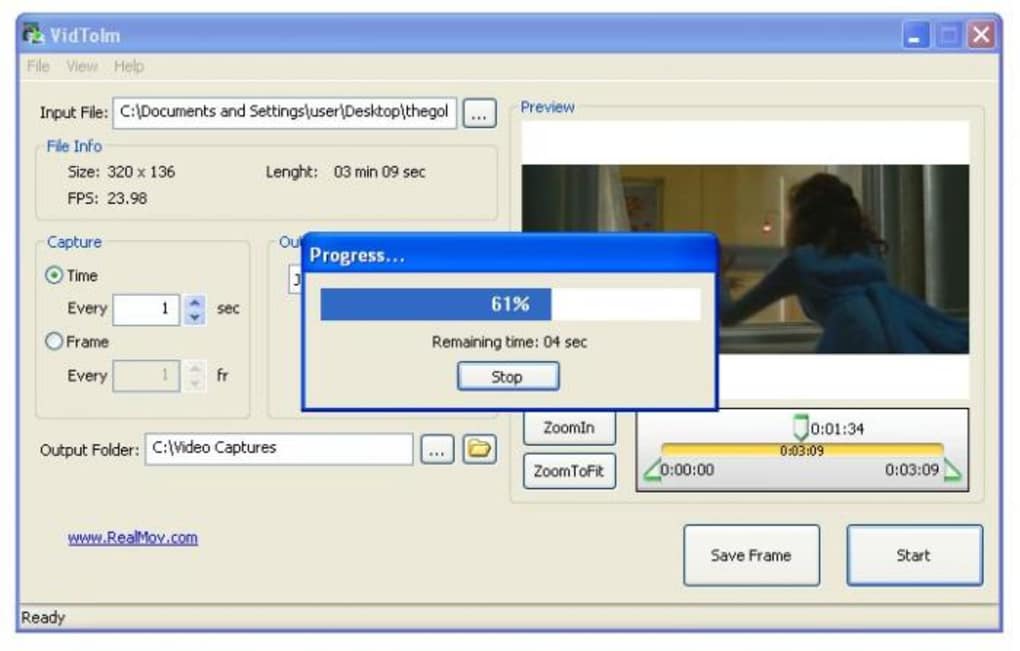
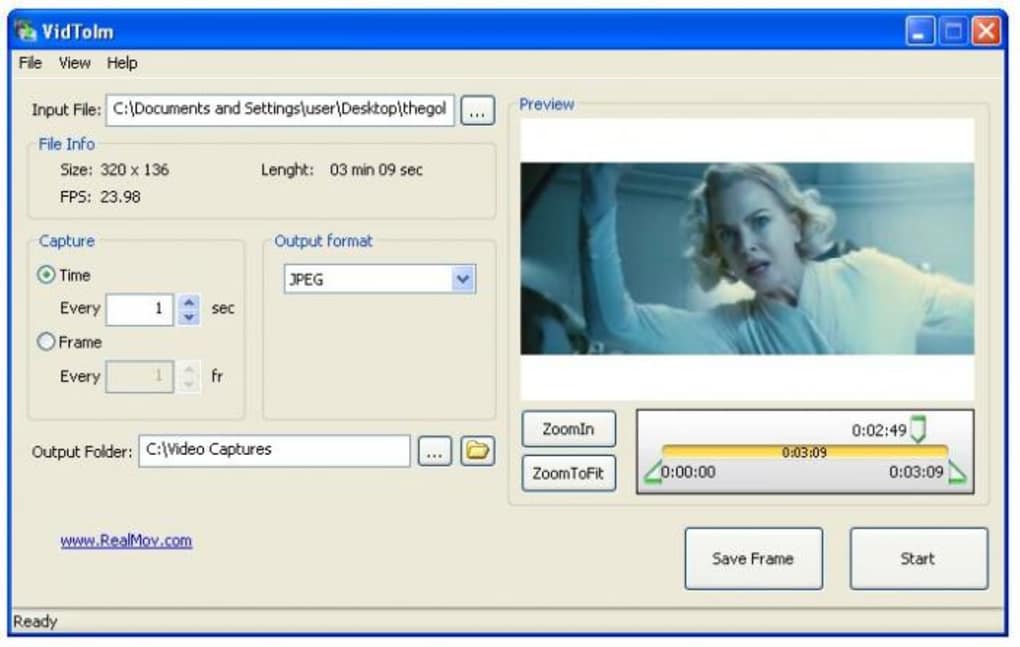
One of the standout aspects of VidImageSplitter is its ability to capture still images from videos with precision and speed. The software supports a wide range of video formats, including MP4, AVI, MOV, MKV, and more, ensuring compatibility with most media files you encounter. Whether you're working with a downloaded movie, a streaming clip, or a home video, VidImageSplitter handles it seamlessly. A major highlight is the automatic screenshot capture feature, which lets you set intervals—every second, every 5 seconds, or even per frame—so you don’t have to manually pause and click. This is especially useful for long-form content like trailers, documentaries, or full-length films.
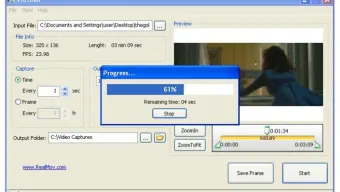
Another powerful feature is the frame-by-frame navigation using the progress bar, which allows you to manually select specific scenes. While the progress bar can be tricky to use with high precision, the tool compensates with a preview window that displays the current frame in real time. This visual feedback helps you identify the exact moment you want to capture. Additionally, VidImageSplitter supports multiple output formats such as PNG, JPEG, BMP, and WebP, giving you flexibility based on your needs—whether you're aiming for lossless quality or smaller file sizes.
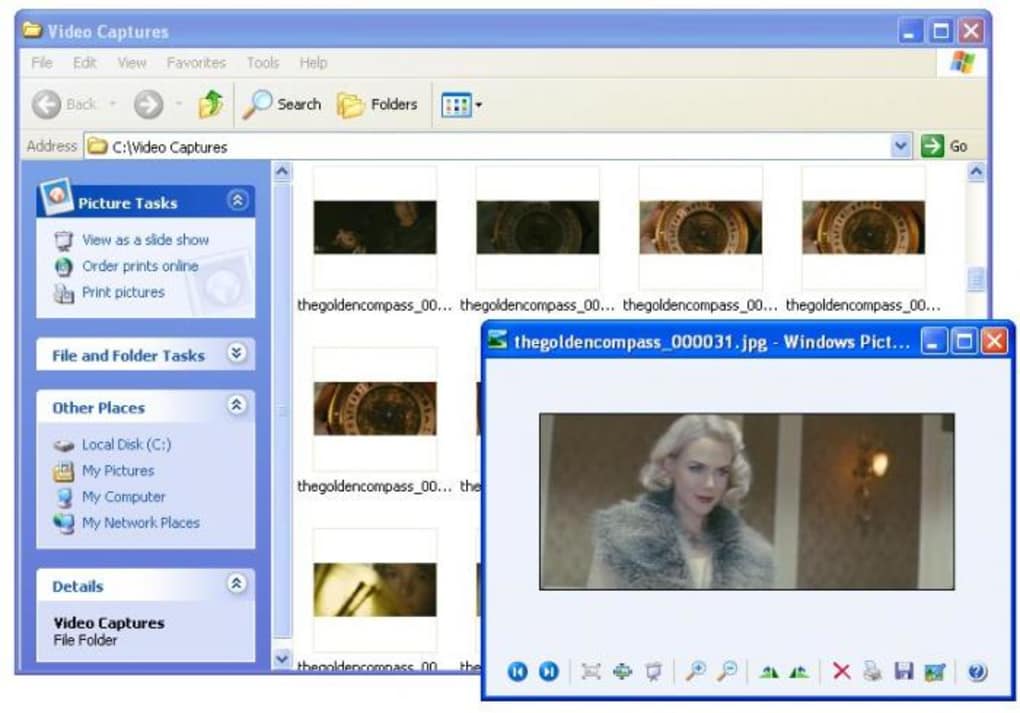
For users who value efficiency, the software includes batch processing, enabling you to extract hundreds of images from a single video in minutes. During testing, a 3-minute trailer produced nearly 200 screenshots in just 10 seconds—proof of its lightning-fast performance. The interface is clean and minimal, focusing on core functionality without clutter. Despite minor usability quirks, the feature set makes VidImageSplitter a go-to tool for video frame extraction. It’s also lightweight, consuming minimal system resources, which is ideal for older devices.
How to Install and Use VidImageSplitter
Getting started with VidImageSplitter is straightforward. First, download the software from the official website. The installer is available for Windows, Mac, Android, and iOS, ensuring broad accessibility. For Windows and Mac users, simply run the downloaded .exe or .dmg file, follow the on-screen prompts, and complete the installation. No complex setup is required—just a few clicks and you’re ready to go.
Once installed, launch the app and click “Open Video” to load your desired file. The software will automatically detect the video’s duration and display it in the progress bar. You can either use the automatic capture mode by selecting the interval
Guías y tutoriales
Cómo instalar VidImageSplitter
- Haz clic en el botón Descargar de arriba.
- Cuando se te redirija, acepta los términos y haz clic en Instalar.
- Espera a que la descarga de VidImageSplitter termine en tu dispositivo.
Cómo usar VidImageSplitter
Este software se usa principalmente para las funciones principales descritas arriba. Abre la aplicación después de instalarla para explorar sus capacidades.
Reseñas de usuarios
Aún no hay reseñas. Sé el primero en compartir tu experiencia.
También te puede gustar
más
Llama 2
Free-to-use large language model As the new addition to Meta’s arsenal of langua...

NotebookLM
Revolutionizing the note-taking and idea-generation process NotebookLM is an exp...

Github co pilot
AI-inspired software development and coding platform GitHub Copilot is a browser...

Google Gemma
Google’s lightweight AI models Introducing Google Gemma , a family of cutting-ed...

AI Image Enlarger
A free app for Windows, by ai-image-larger. AI Image Enlarger is a free software...

DALL E
AI-driven text-to-image transformation engine DALL·E is a free graphic and desig...